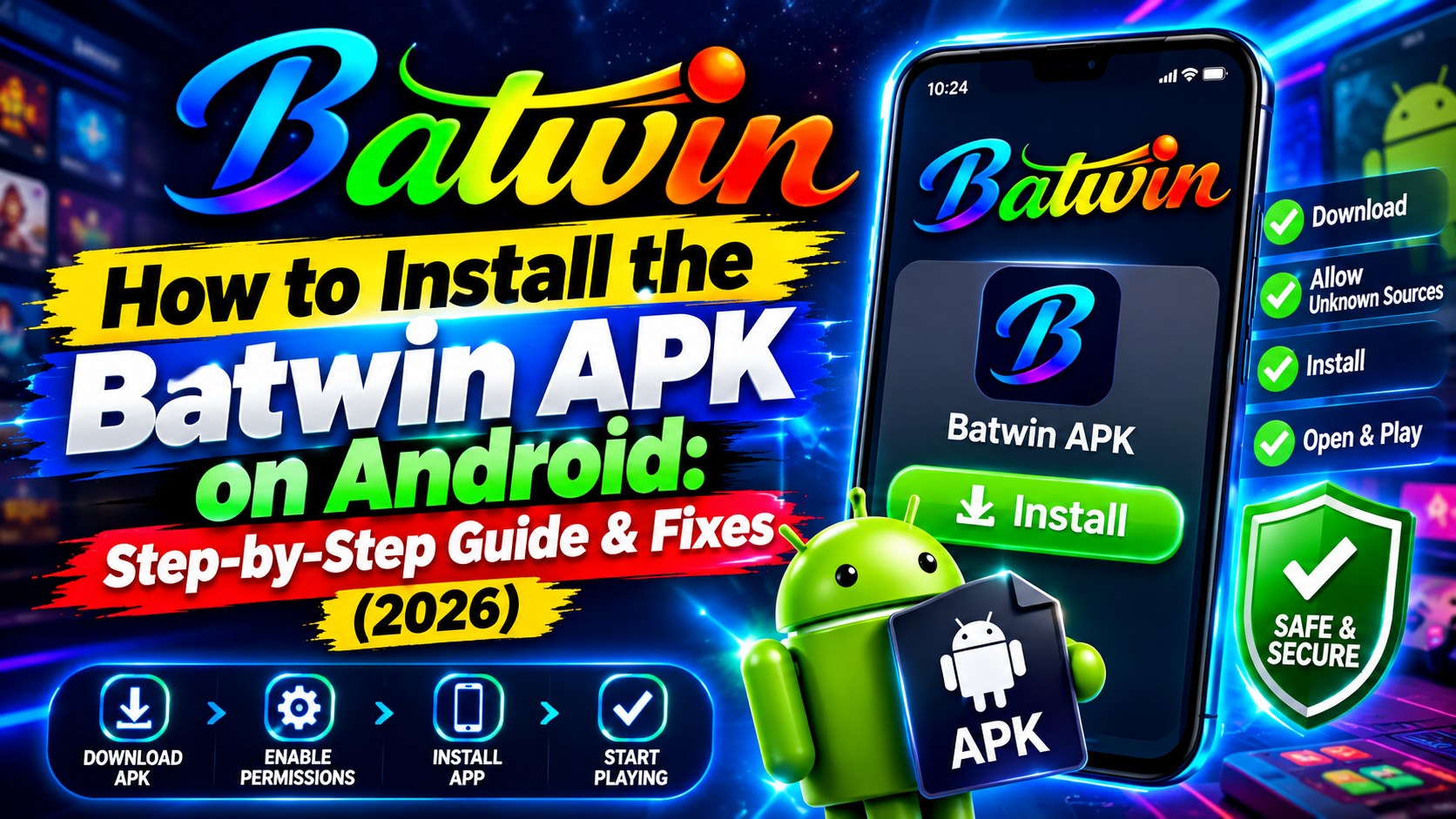
Download the APK only through the official download button on the BatWin.io download page, allow Install Unknown Apps for the browser or file manager you're using, open the file (about 45–60 MB), tap Install, then switch that permission back off. You need Android 6.0 or higher and at least 100 MB of free storage. If Google Play Protect shows a warning, stop and read it rather than tapping past it — and never install a copy that arrived through WhatsApp, Telegram or a "modded" link.
What an APK Is — and What to Have Ready First
An APK (Android Package) is simply the file format Android uses to bundle an app. When you install something from Google Play, the store downloads and installs these packages for you behind the scenes. Installing an APK yourself — often called "sideloading" — uses the very same installer; it just skips the store as the middleman.
Many real-money gaming apps are offered this way. As our download page explains, Google Play restricts real-money gaming apps in certain regions, so Batwin Game is distributed as a direct APK download. That is a common arrangement for gaming apps in India — but it comes with a trade-off you should understand upfront. Google Play adds its own review layer and handles updates automatically. When you sideload, you become the checkpoint. That's why the source of the file matters so much, and why most of this guide is about being careful rather than about tapping buttons.
Before you start: a two-minute checklist
Running through this first prevents most failed installs. The requirements below come straight from the download page.
| Check | What you need | Why it matters |
|---|---|---|
| Android version | Android 6.0 (Marshmallow) or higher | Required — older versions can't install it |
| Free storage | At least 100 MB free | Required — the APK is ~45–60 MB, plus install space |
| RAM | 2 GB minimum, 3 GB recommended | Affects smoothness, not installation |
| Connection | Stable Wi-Fi, 4G or 5G | A broken download is a common cause of errors |
| Your age and location | 18+ and outside the restricted states | Required by law and by the app's terms |
The last row is not a formality. Real-money gaming is strictly for adults, and it is restricted in some Indian states — the full list is in the callout near the end of this article and on our responsible gaming page. If either applies to you, don't install the app at all. Also note that the download page lists Android only; iPhones are not currently supported.
Getting the Right File: Avoiding Fake and Modded APKs
If you take only one thing from this guide, make it this section. The install process is identical for a genuine APK and a malicious one — Android can't tell you which you're holding. The only reliable protection is being strict about where the file comes from.
The safe route
Use the download button on the BatWin.io download page (the "Download APK" button in the site menu leads to the same place). BatWin.io is an independent affiliate site rather than the app's operator, so that button hands you off to the app's official download link — you don't need to hunt for the file anywhere else. Type or bookmark the address yourself rather than following links from messages.
Sources to avoid
- APKs forwarded on WhatsApp or Telegram. A file that has passed through several hands could have been altered at any point, and you can't trace it back.
- "Modded," "hacked," "unlimited balance" or "predictor" versions. These promise something a legitimate app can't deliver — and the people distributing them are not doing it out of generosity.
- Look-alike websites with a slightly different domain name, or file-sharing links in video descriptions and comment sections.
- Anyone who messages you a file and offers to "help you install." A real support team doesn't send APKs over chat.
Why the risk is real
A repackaged APK can look and behave like the genuine app while doing something else in the background. Depending on what it has been built to do, the outcomes range from annoying (aggressive ads) to serious: reading the SMS messages that contain your OTPs, overlaying a fake login screen to capture your password, or harvesting payment details. For a real-money app, that adds up to account theft — someone else logging in as you and withdrawing to their own account. A modded copy also can't give you free money; the balance lives on the operator's servers, and anything claiming otherwise is either fake or a lure.
The Install, Step by Step
Here is the whole process as it works on most Android phones. Menu names differ slightly between manufacturers, so treat the paths as a guide rather than exact wording.
- Download the APK from the official button on the download page. The file is roughly 45–60 MB, so on a decent connection it takes a minute or two.
- Allow "Install Unknown Apps" for the app you're installing from — usually your browser, or the file manager if you open the file from there. If you skip this, Android will normally stop you with a prompt and offer a shortcut to the right settings screen.
- Open the file. Tap "Open" on the download notification, or find the APK in your Downloads folder (our download page mentions Downloads/BatwinGame.apk) and tap it.
- Tap "Install" on the confirmation screen. Installation takes roughly 15–30 seconds — stay on the screen until it finishes.
- Tap "Open" or launch the app from your home screen.
- Switch "Install Unknown Apps" back off for that browser or file manager. This is the step most people forget, and it's the one that keeps your phone protected afterwards.
Older Android versus Android 8 and above
The one place instructions genuinely differ is the permission screen, because Android changed how it works around version 8:
- Android 6 and 7: there is a single, global "Unknown sources" switch, usually under Settings → Security. While it's on, every app on the phone is allowed to install other apps, which is exactly why you should switch it off the moment you're done.
- Android 8 and above: permission is granted per app. Rather than opening the door for the whole phone, you allow one specific app — say Chrome or your file manager — to install packages. You'll find it under an "Install unknown apps" or "Special app access" entry, and its location varies by version and brand (some Xiaomi phones tuck it under Privacy → Special permissions). This is safer, but you must grant it to the right app: the one you're opening the APK from.
Our download page has a tabbed walkthrough for Android 10+, Android 8 and 9, Android 6 and 7, and MIUI / Xiaomi devices, which is worth keeping open in a second tab if your phone's menus look different from what's described here.
Ready to Install the Right Way?
Use the official download button, follow the steps above, and switch the permission off afterwards. The whole install takes a few minutes.
Google Play Protect Warnings — What to Do
Google Play Protect is the security scanner built into most Android phones that have Google services. It checks apps for known harmful behaviour — including apps you install from outside the Play Store. Because an APK you sideload hasn't been through Google Play, you may see a Play Protect message during installation. The exact wording and layout depend on your Android version and phone brand, so don't expect it to match a screenshot.
Broadly, there are two very different situations, and it's worth telling them apart:
| What you see | What it usually means | What to do |
|---|---|---|
| A prompt offering to scan the app, or saying the app is unrecognised | Google hasn't seen this app before, which is common for apps distributed outside Play. It is not, by itself, a finding of malware. | Choose the scan option and read the result |
| A message saying the app is harmful, unsafe or has been blocked | Play Protect has matched the file against something it considers dangerous, or the file may have been tampered with. | Stop. Delete the file and re-download from the official page |
| The install is blocked with no clear reason | Could be a policy setting on the phone, a work-managed device, or a partial download. | Re-download, retry, then contact support |
If a warning appears, tap for more details and read what it actually says. If it's just an unrecognised-app prompt and you're certain you got the file from the official page, running the scan and continuing is a reasonable choice. If it says the app is harmful, or you have any doubt about where the file came from, cancel, delete the APK and start again from the official download page. If the same warning keeps returning on a freshly downloaded file, don't force it — contact support at hello@batwin.io with your phone model, Android version and the exact message on screen.
First Launch: Register, KYC, Bonus and Payouts
Once the app opens, the sensible order of operations is below. Doing these in sequence — rather than jumping straight to games — saves you delays later.
- Register with your mobile number. Use the number you'll keep long-term and that receives SMS reliably, because you'll use OTPs to log in from new devices. The download page notes one account is allowed per mobile number.
- Complete KYC early. Withdrawals need it, and doing it right after registration means it's never a surprise. Our KYC verification guide covers the documents and how to avoid the common rejections.
- Understand the welcome bonus before claiming it. The ₹10,000 welcome bonus is tied to your first deposit, and the wagering terms decide whether it's worth using. Read the welcome bonus breakdown first. The site also advertises cashback on deposits — see the cashback bonus guide for how that type of offer generally works.
- Make a first deposit you're comfortable losing. Set the amount before you open a game, not after. The bankroll management guide explains how to size deposits and sessions sensibly.
- Test a small withdrawal path. Once KYC is approved, know how payouts work — the UPI withdrawal guide walks through it, including the details that cause delays.
None of this is difficult, but it's much easier to do it calmly on day one than in a hurry when you've won and want to withdraw. Keep in mind too that gaming involves financial risk and there is no guarantee of winnings — the install is the easy part.
Troubleshooting: 8 Common Problems and Fixes
Most install problems come down to a handful of causes. Find your symptom in the table, try the fix, and only then move on to the next one. Many of these fixes overlap with the troubleshooting cards on our download page.
| Problem | Likely Cause | The Fix |
|---|---|---|
| "App not installed" | Incomplete download, not enough space, or the unknown-apps permission not granted to the app you're installing from | Delete the file, free up space, re-download on a stable connection, check the permission, then restart the phone and retry |
| "Parse error" / "There was a problem parsing the package" | Corrupted or partial APK, or an Android version below 6.0 | Confirm your Android version, delete the partial file and download again from the official page without interrupting it |
| "Insufficient storage" | Less than the required free space, or a nearly full phone | Free up at least 100 MB — clear old downloads, unused apps and cached media — then retry |
| Blocked by Play Protect | Unrecognised app prompt, or a genuine harmful-app finding | Read the wording (see the Play Protect section above). Delete and re-download if it says harmful; contact support if it persists |
| Download keeps failing | Weak signal, data saver, or a browser/network issue | Switch to Wi-Fi, turn off data saver or VPN, try another browser, and wait a few minutes before retrying |
| App crashes or won't open | Corrupted cache, low memory, or a poor connection | Force stop and clear cache in Settings → Apps, close other apps, restart the phone; reinstall the latest APK if it continues |
| App is slow or laggy | Low RAM, background apps, or an unstable connection | Close background apps, switch to a stronger Wi-Fi or 4G/5G signal, and keep free storage comfortably above the minimum |
| OTP not arriving | Weak network, SMS filtering, or a wrong number | Check signal, look in the spam or blocked-messages folder, use "Resend OTP," and confirm you entered the registered number |
Two general rules make almost every fix above work better. First, always re-download rather than reuse a suspect file — a broken APK never repairs itself. Second, restart the phone before a second attempt; it clears stuck installer processes more often than you'd expect.
A note on device compatibility: the download page points out that some custom ROMs can behave unpredictably and that rooted devices may run into security restrictions. If you're on a heavily modified phone and nothing works, contact support with your model and Android version rather than trying random workarounds you find online — many of those "fixes" are just another way of bypassing the protections described earlier.
Updating, Uninstalling and Reinstalling Safely
Because the app isn't installed through Google Play, it won't update itself the way Play apps do. You'll need to pick up newer versions yourself.
Updating
Go back to the official download page and download the current APK; the page shows the latest version. According to that page, you don't need to uninstall the old version first — installing the new APK over the existing app preserves your account data, and you simply log in again if asked. You'll need to allow "Install Unknown Apps" again for your browser, and it's worth switching it off once more afterwards. If you see a pop-up or message elsewhere telling you to "update now" via a random link, ignore it and go directly to the official page.
Uninstalling and reinstalling
Sometimes a clean reinstall is the right fix — for repeated crashes, say. Your balance and account details live on your account, not on the phone itself: the download page states that account data such as balance, game history, bonuses and KYC status is stored server-side. That means uninstalling the app should not delete your account. Still, take these precautions first:
- Confirm you can log back in. Your registered mobile number must be active and able to receive an OTP. If the SIM is lost or the number is inactive, sort that out before uninstalling.
- Check for pending transactions. If you have a withdrawal in progress, let it complete or confirm its status first, so you're not left wondering whether the reinstall affected it.
- Uninstall from Settings → Apps, then delete the old APK from your Downloads folder so you don't accidentally reinstall an outdated file.
- Download a fresh copy from the official page and repeat the install steps above.
Moving to a new phone works the same way: install from the official page, then log in with your registered mobile number and OTP. Simultaneous logins on several devices may not be supported, so check the app's terms if you plan to use more than one.
Security Habits That Protect Your Account
A clean install protects the device. These habits protect the account that sits behind it — and they matter just as much for real-money apps.
Never share your OTP or password
No genuine support agent, bonus "manager" or fellow player needs your OTP. Anyone asking for it — including by voice call — is trying to log in as you.
Beware fake support accounts
Scammers set up look-alike WhatsApp, Telegram and social profiles. Use only the contact details published on the site and inside the app, such as hello@batwin.io.
Lock your phone
Use a PIN, pattern or fingerprint lock. A phone left open with a logged-in gaming app and linked UPI apps is an easy target if it's lost or borrowed.
Avoid public Wi-Fi for payments
Café, station or mall networks are weaker than your own. Use mobile data or a trusted home network when depositing or withdrawing.
A few smaller points are worth adding. Keep Android itself updated, since system updates include security fixes. Review the permissions the app requests when it asks; it should only need what it functions with, and anything that seems unrelated deserves a question to support. And remember that in UPI, receiving money never requires you to enter your UPI PIN — if any "payout" screen or caller asks for it, that is a scam pattern, not a withdrawal.
Finally, keep your responsible-play limits as firmly in place as your security ones. Setting a deposit ceiling and a session length is as much a protection as a screen lock, and our responsible gaming page lists where to get help if play stops being fun.
6 Install Mistakes to Avoid
- Installing from the first link you find. Search results, forwarded messages and video descriptions all include fake and repackaged files. Go through the official download page every time.
- Leaving "Install Unknown Apps" switched on. It was only ever needed for the install. Leaving it on widens the door for anything else that tries to install itself.
- Dismissing Play Protect without reading it. An unrecognised-app prompt and a harmful-app block are not the same thing. Read the message before you decide.
- Reusing a half-downloaded or renamed file. If the first attempt failed, download again. A partial APK causes most "Parse error" and "App not installed" messages.
- Installing on a nearly full phone. You need at least 100 MB free, and more headroom makes the app run better afterwards.
- Skipping KYC and the bonus terms until later. Installing is step one, not the finish line. Do KYC early and read the bonus terms before depositing so nothing surprises you at withdrawal time.